This module defines a hierarchical set of ftxui::Element. An element manages the layout and can be responsive to the terminal dimension changes. Note the following example where this module is used to create a simple layout with a number of operators:
The Example section provides a collection of examples.
Example:
...
Element document =
vbox({
text(
"The window") | bold |
color(Color::Blue),
text("The footer")
});
document = border(document);
document = document | border.
document |= border
...
}
Element text(std::string_view text)
Display a piece of UTF8 encoded unicode text.
Element color(Color color, Element child)
Set the foreground color of an element.
Element gauge(float progress)
Draw a high definition progress bar.
Element vbox(Elements children)
A container displaying elements vertically one by one.
The FTXUI ftxui:: namespace.
List of elements
The list of all elements are included and can be accessed by including the corresponding header file:
#ifndef FTXUI_DOM_ELEMENTS_HPP
#define FTXUI_DOM_ELEMENTS_HPP
#include <cstdint>
#include <functional>
#include <memory>
#include <string_view>
class Node;
using Element = std::shared_ptr<Node>;
};
Color unselected_color,
Color selected_color);
Color unselected_color,
Color selected_color);
std::vector<std::string> charset,
Element canvas(
int width,
int height, std::function<
void(Canvas&)>);
}
}
#include "ftxui/dom/take_any_args.hpp"
#endif
#define FTXUI_EXPORT(component)
Element window(Element title, Element content, BorderStyle border=ROUNDED)
Draw window with a title and a border around the element.
Element borderDouble(Element child)
Draw a double border around the element.
Element focusCursorBarBlinking(Element child)
Same as focus, but set the cursor shape to be a blinking bar.
Element xflex(Element)
Expand/Minimize if possible/needed on the X axis.
Element gaugeDirection(float progress, Direction direction)
Draw a high definition progress bar progressing in specified direction.
Decorator focusPositionRelative(float x, float y)
Used inside a frame, this force the view to be scrolled toward a a given position....
Element separatorStyled(BorderStyle style)
Draw a vertical or horizontal separation in between two other elements.
Element xflex_grow(Element)
Expand if possible on the X axis.
Element underlinedDouble(Element child)
Apply a underlinedDouble to text.
Element clear_under(Element element)
Before drawing |child|, clear the cells below. This is useful in combination with dbox.
Element borderDashed(Element child)
Draw a dashed border around the element.
Element separatorEmpty()
Draw a vertical or horizontal separation in between two other elements, using the EMPTY style.
Element vscroll_indicator(Element child)
Display a vertical scrollbar on the right. The background follows the content, the rest follows the p...
Element nothing(Element element)
A decoration doing absolutely nothing.
Element paragraphAlignLeft(std::string_view the_text)
Return an element drawing the paragraph on multiple lines, aligned on the left.
Element flex(Element child)
Make a child element to expand proportionally to the space left in a container.
Element hyperlink(std::string_view link, Element child)
Make the rendered area clickable using a web browser. The link will be opened when the user clicks on...
Element gaugeRight(float progress)
Draw a high definition progress bar progressing from left to right.
Element focusCursorUnderlineBlinking(Element child)
Same as focus, but set the cursor shape to be a blinking underline.
Element bold(Element child)
Use a bold font, for elements with more emphasis.
Element separatorLight()
Draw a vertical or horizontal separation in between two other elements, using the LIGHT style.
Element spinner(int charset_index, size_t image_index)
Useful to represent the effect of time and/or events. This displays an ASCII art "video".
Element borderRounded(Element child)
Draw a rounded border around the element.
Element yflex(Element)
Expand/Minimize if possible/needed on the Y axis.
Element flex_shrink(Element child)
Minimize if needed.
Element focusCursorBar(Element child)
Same as focus, but set the cursor shape to be a still block.
Element focusCursorBlock(Element child)
Same as focus, but set the cursor shape to be a still block.
Element vtext(std::string_view text)
Display a piece of unicode text vertically.
BorderStyle
BorderStyle is an enumeration that represents the different styles of borders that can be applied to ...
Element underlined(Element child)
Underline the given element.
Element center(Element child)
Center an element horizontally and vertically.
Element paragraphAlignJustify(std::string_view the_text)
Return an element drawing the paragraph on multiple lines, aligned using a justified alignment....
Direction
Direction is an enumeration that represents the four cardinal directions.
Element focusCursorUnderline(Element child)
Same as focus, but set the cursor shape to be a still underline.
Element borderHeavy(Element child)
Draw a heavy border around the element.
Element inverted(Element child)
Add a filter that will invert the foreground and the background colors.
Element gaugeUp(float progress)
Draw a high definition progress bar progressing from bottom to top.
Element gaugeCharset(float progress, std::vector< std::string > charset, Direction direction=Direction::Right)
Draw a high definition progress bar using a custom charset.
Element align_right(Element child)
Align an element on the right side.
Decorator focusPosition(int x, int y)
Used inside a frame, this force the view to be scrolled toward a a given position....
Element yflex_grow(Element)
Expand if possible on the Y axis.
Element hscroll_indicator(Element child)
Display a horizontal scrollbar at the bottom. The background follows the content, the rest follows th...
Element flex_grow(Element child)
Expand if possible.
Element separatorDashed()
Draw a vertical or horizontal separation in between two other elements, using the DASHED style.
Element notflex(Element child)
Make the element not flexible.
Element strikethrough(Element child)
Apply a strikethrough to text.
Element italic(Element child)
Apply a underlinedDouble to text.
Element dbox(Elements children_)
Stack several element on top of each other.
Element xflex_shrink(Element)
Minimize if needed on the X axis.
Decorator borderWith(const Cell &pixel)
Same as border but with a constant Cell around the element.
Element gaugeLeft(float progress)
Draw a high definition progress bar progressing from right to left.
Element paragraphAlignCenter(std::string_view the_text)
Return an element drawing the paragraph on multiple lines, aligned on the center.
Element borderLight(Element child)
Draw a light border around the element.
Element focus(Element child)
Set the child to be the one focused among its siblings.
Element paragraph(std::string_view the_text)
Return an element drawing the paragraph on multiple lines.
Element bgcolor(Color color, Element child)
Set the background color of an element.
Decorator borderStyled(BorderStyle style)
Same as border but with different styles.
Element paragraphAlignRight(std::string_view the_text)
Return an element drawing the paragraph on multiple lines, aligned on the right.
Element separator()
Draw a vertical or horizontal separation in between two other elements.
Element filler()
An element that will expand proportionally to the space left in a container.
Element dim(Element child)
Use a light font, for elements with less emphasis.
Element automerge(Element child)
Enable character to be automatically merged with others nearby.
Element separatorCharacter(std::string_view value)
Draw a vertical or horizontal separation in between two other elements.
Element blink(Element child)
The text drawn alternates in between visible and hidden.
Element vcenter(Element child)
Center an element vertically.
Element separatorDouble()
Draw a vertical or horizontal separation in between two other elements, using the DOUBLE style.
Element focusCursorBlockBlinking(Element child)
Same as focus, but set the cursor shape to be a blinking block.
Element border(Element child)
Draw a border around the element.
Element separatorHeavy()
Draw a vertical or horizontal separation in between two other elements, using the HEAVY style.
Element borderEmpty(Element child)
Draw an empty border around the element.
Element yflex_shrink(Element)
Minimize if needed on the Y axis.
Element hcenter(Element child)
Center an element horizontally.
Element gaugeDown(float progress)
Draw a high definition progress bar progressing from top to bottom.
The FTXUI ftxui::Dimension:: namespace.
bool extend_beyond_screen
Element flexbox(Elements, FlexboxConfig config=FlexboxConfig())
A container displaying elements on row/columns and capable of wrapping on the next column/row when fu...
Element separatorVSelector(float up, float down, Color unselected_color, Color selected_color)
Draw an vertical bar, with the area in between up/downcolored differently.
Decorator yflex_shrink_factor(int shrink)
std::shared_ptr< Node > Element
Element xframe(Element child)
Same as frame, but only on the x-axis.
Decorator xflex_grow_factor(int grow)
FTXUI_EXPORT(DOM) Element gridbox(std Element hflow(Elements)
A container displaying elements in rows from left to right. When filled, it starts on a new row below...
Decorator yflex_grow_factor(int grow)
FTXUI_EXPORT(DOM) Element separatorCharacter(std Element separatorHSelector(float left, float right, Color unselected_color, Color selected_color)
Draw a horizontal bar, with the area in between left/right colored differently.
Element hbox(Elements children)
A container displaying elements horizontally one by one.
std::vector< Element > Elements
Decorator selectionForegroundColor(Color foreground)
Set the foreground color of an element when selected. Note that the style is applied on top of the ex...
Decorator yflex_factor(int grow, int shrink)
Component operator|(Component component, ComponentDecorator decorator)
Decorator selectionBackgroundColor(Color foreground)
Set the background color of an element when selected. Note that the style is applied on top of the ex...
std::function< Element(Element)> Decorator
Decorator flex_shrink_factor(int shrink)
Element yframe(Element child)
Same as frame, but only on the y-axis.
Decorator flex_grow_factor(int grow)
Decorator selectionColor(Color foreground)
Set the color of an element when selected.
Element selectionStyleReset(Element child)
Reset the selection style of an element.
Decorator reflect(Box &box)
std::function< std::vector< int >(int, int)> GraphFunction
Decorator xflex_shrink_factor(int shrink)
Decorator xflex_factor(int grow, int shrink)
Decorator flex_factor(int grow, int shrink)
Element gridbox(std::vector< Elements > lines)
A container displaying a grid of elements.
Element canvas(int width, int height, std::function< void(Canvas &)>)
Produce an element drawing a canvas of requested size.
Element frame(Element child)
Allow an element to be displayed inside a 'virtual' area. It size can be larger than its container....
Component & operator|=(Component &component, ComponentDecorator decorator)
Element select(Element e)
Set the child to be the one focused among its siblings.
Decorator selectionStyle(std::function< void(Cell &)> style)
Set the style of an element when selected.
Element vflow(Elements)
A container displaying elements in rows from top to bottom. When filled, it starts on a new columns o...
Element graph(GraphFunction graph_function)
Draw a graph using a GraphFunction.
text
The most simple widget. It displays a text.
text("I am a piece of text");
vtext
Identical to ftxui::text, but displayed vertically.
Code:
Terminal output:
paragraph
Similar to ftxui::text, but the individual word are wrapped along multiple lines, depending on the width of its container.
Sample Code:
paragraph("A very long text")
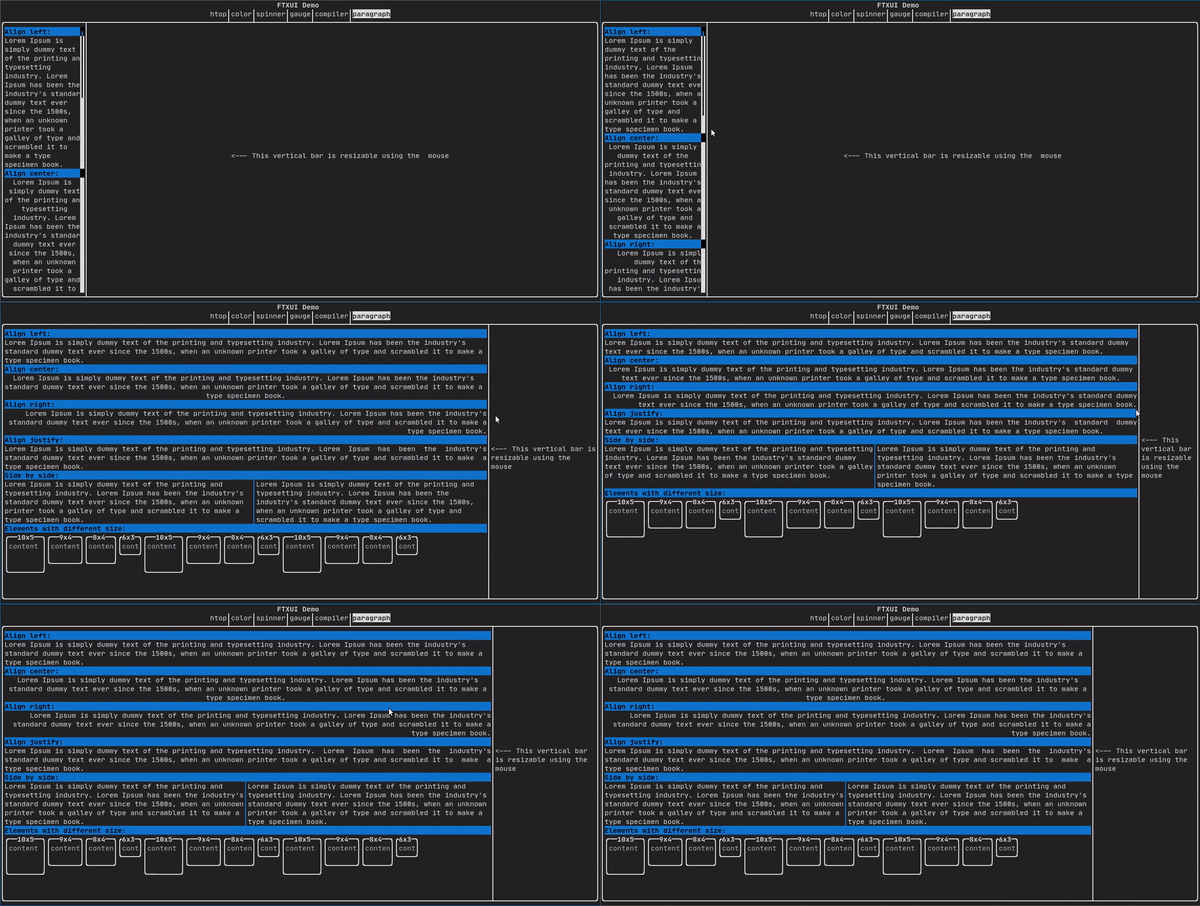
For a more detailed example refer to detailed example. Paragraph also includes a number of other variants as shown below:
border
Adds a border around an element.
Code:
border(text("The element"))
Terminal output:
┌───────────┐
│The element│
└───────────┘
- Note
- You can achieve the same behavior by using the pipe operator.
Code: text("The element") | border
Border also comes in a variety of styles as shown below:
window
A ftxui::window is a ftxui::border, but with an additional header. To add a window around an element, wrap it and specify a string as the header. Code:
window("The window", text("The element"))
Terminal output:
┌The window─┐
│The element│
└───────────┘
separator
Displays a vertical/horizontal line to visually split the content of a container in two.
Code:
border(
hbox({
text("Left"),
separator(),
text("Right")
})
)
Terminal output:
┌────┬─────┐
│left│right│
└────┴─────┘
Separators come in a variety of flavors as shown below:
Color background,
Color foreground);
Color background,
Color foreground);
}
gauge
This is a visual element that represents a ratio of progress.
Code:
Terminal output:
┌────────────────────────────────────────────────────────────────────────────┐
│██████████████████████████████████████ │
└────────────────────────────────────────────────────────────────────────────┘
Gauges can be displayed in many orientations as shown below:
namespace {
Element gauge(float ratio);
Element gaugeLeft(float ratio);
Element gaugeRight(float ratio);
Element gaugeUp(float ratio);
Element gaugeDown(float ratio);
Element gaugeDirection(float ratio, GaugeDirection);
}
graph
See:
Element graph(GraphFunction);
Colors
Most terminal consoles can display colored text and colored backgrounds. FTXUI supports every color palette:
Decorator color(Color);
Decorator bgcolor(Color);
Color gallery: 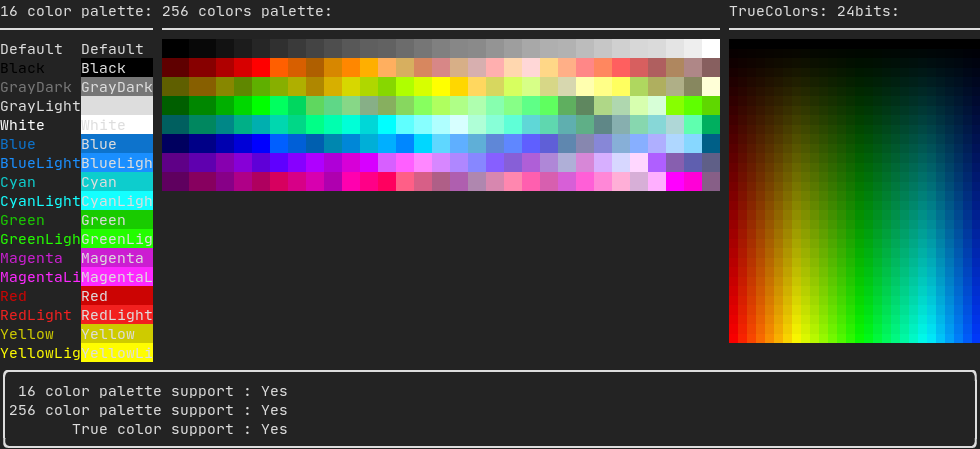
Palette16
On most terminals the following colors are supported:
- Default
- Black
- GrayDark
- GrayLight
- White
- Blue
- BlueLight
- Cyan
- CyanLight
- Green
- GreenLight
- Magenta
- MagentaLight
- Red
- RedLight
- Yellow
- YellowLight
Example use of the above colors using the pipe operator:
text("Blue foreground") | color(Color::Blue);
text("Blue background") | bgcolor(Color::Blue);
text("Black on white") | color(Color::Black) | bgcolor(Color::White);
Palette256
On terminal supporting 256 colors.
text("HotPink") | color(Color::HotPink);
TrueColor
On terminal supporting trueColor, you can directly use the 24bit RGB color space:
Use the constructors below to specify the RGB or HSV values for your color:
There are two constructors:
ftxui::Color::RGB(uint8_t red, uint8_t green, uint8_t blue);
ftxui::Color::HSV(uint8_t hue, uint8_t saturation, uint8_t value);
LinearGradient
FTXUI supports linear gradient. Either on the foreground or the background.
Decorator color(const LinearGradient&);
Decorator bgcolor(const LinearGradient&);
A ftxui::LinearGradient is defined by an angle in degree, and a list of color stops.
auto gradient = LinearGradient()
.Angle(45)
.AddStop(0.0, Color::Red)
.AddStop(0.5, Color::Green)
.AddStop(1.0, Color::Blue);
You can also use simplified constructors:
LinearGradient(Color::Red, Color::Blue);
LinearGradient(45, Color::Red, Color::Blue);
See demo.
Style
In addition to colored text and colored backgrounds. Many terminals support text effects such as: bold, italic, dim, underlined, inverted, blink.
Element bold(Element);
Element italic(Element);
Element dim(Element);
Element inverted(Element);
Element underlined(Element);
Element underlinedDouble(Element);
Element strikethrough(Element);
Element blink(Element);
Decorator color(Color);
Decorator bgcolor(Color);
Decorator colorgrad(LinearGradient);
Decorator bgcolorgrad(LinearGradient);
Example

To use these effects, simply wrap your elements with your desired effect:
underlined(bold(text("This text is bold and underlined")))
Alternatively, use the pipe operator to chain it on your element:
text("This text is bold") | bold | underlined
Layout
Enables elements to be arranged in the following ways:
- Horizontally with
ftxui::hbox
- Vertically with
ftxui::vbox
- Inside a grid with
ftxui::gridbox
- Wrapped along one direction using the
ftxui::flexbox.
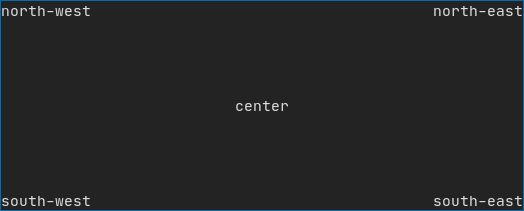
Example using ftxui::hbox, ftxui::vbox and ftxui::filler.
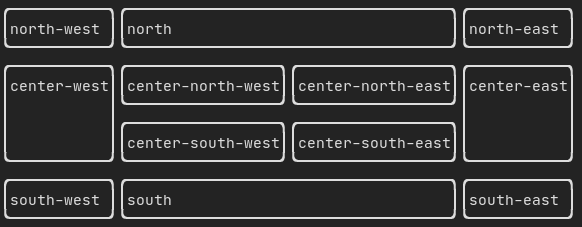
Example using ftxui::gridbox:
Example using flexbox:
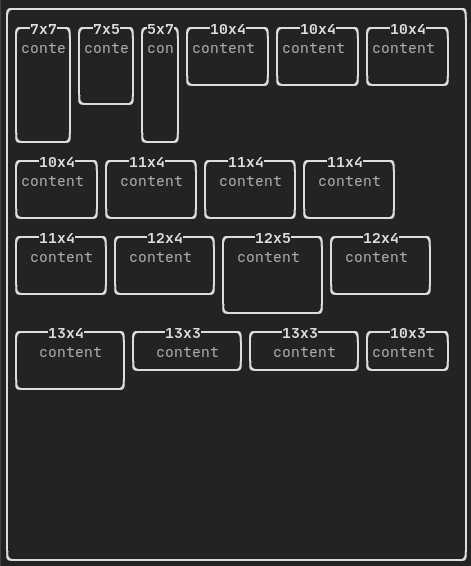
Checkout this example and the associated demo.
Element can also become flexible using the ftxui::flex decorator.
Code:
hbox({
text("left") | border ,
text("middle") | border | flex,
text("right") | border,
});
Terminal output:
┌────┐┌─────────────────────────────────────────────────────┐┌─────┐
│left││middle ││right│
└────┘└─────────────────────────────────────────────────────┘└─────┘
Code:
hbox({
text("left") | border ,
text("middle") | border | flex,
text("right") | border | flex,
});
Terminal output:
┌────┐┌───────────────────────────────┐┌───────────────────────────────┐
│left││middle ││right │
└────┘└───────────────────────────────┘└───────────────────────────────┘
Table
Enables easy formatting of data into a neat table like visual form.
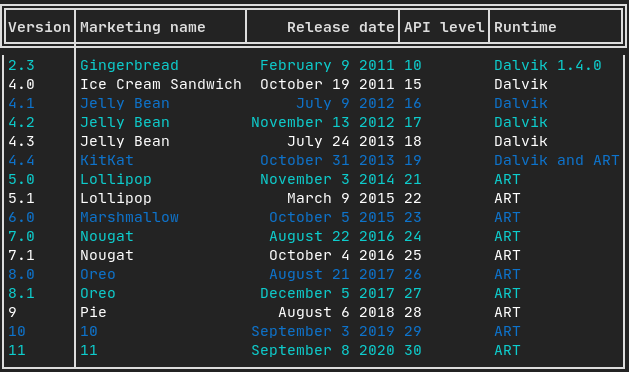
Basic example:
auto table = Table({
{"Planet", "Radius", "Mass"},
{"Mercury", "2440", "0.330"},
{"Venus", "6052", "4.87"},
{"Earth", "6371", "5.97"},
{"Mars", "3390", "0.642"},
});
table.SelectAll().Border(LIGHT);
table.SelectRow(0).Decorate(bold);
table.SelectRow(0).SeparatorVertical(LIGHT);
table.SelectRow(0).Border(DOUBLE);
auto document = table.Render();
Code example:
Selection and Styling
You can select parts of the table and apply decorators or borders to them. Selection methods include:
ftxui::TableSelection::SelectAll();
ftxui::TableSelection::SelectCell(column, row);
ftxui::TableSelection::SelectRow(row_index);
ftxui::TableSelection::SelectRows(row_min, row_max);
ftxui::TableSelection::SelectColumn(column_index);
ftxui::TableSelection::SelectColumns(column_min, column_max);
ftxui::TableSelection::SelectRectangle(column_min, column_max, row_min, row_max);
Once a selection is made, you can apply:
ftxui::TableSelection::Decorate(Decorator);
ftxui::TableSelection::DecorateCells(Decorator);
ftxui::TableSelection::Border(BorderStyle);
ftxui::TableSelection::Separator(BorderStyle);
Colored borders
You can also apply decorators specifically to borders and separators:
table.SelectAll().Border(LIGHT, color(Color::Red));
table.SelectRow(0).SeparatorVertical(LIGHT, color(Color::Blue));
The following methods are available for fine-grained border decoration:
ftxui::TableSelection::DecorateBorder(Decorator);
ftxui::TableSelection::DecorateBorderLeft(Decorator);
ftxui::TableSelection::DecorateBorderRight(Decorator);
ftxui::TableSelection::DecorateBorderTop(Decorator);
ftxui::TableSelection::DecorateBorderBottom(Decorator);
ftxui::TableSelection::DecorateSeparator(Decorator);
ftxui::TableSelection::DecorateSeparatorVertical(Decorator);
ftxui::TableSelection::DecorateSeparatorHorizontal(Decorator);
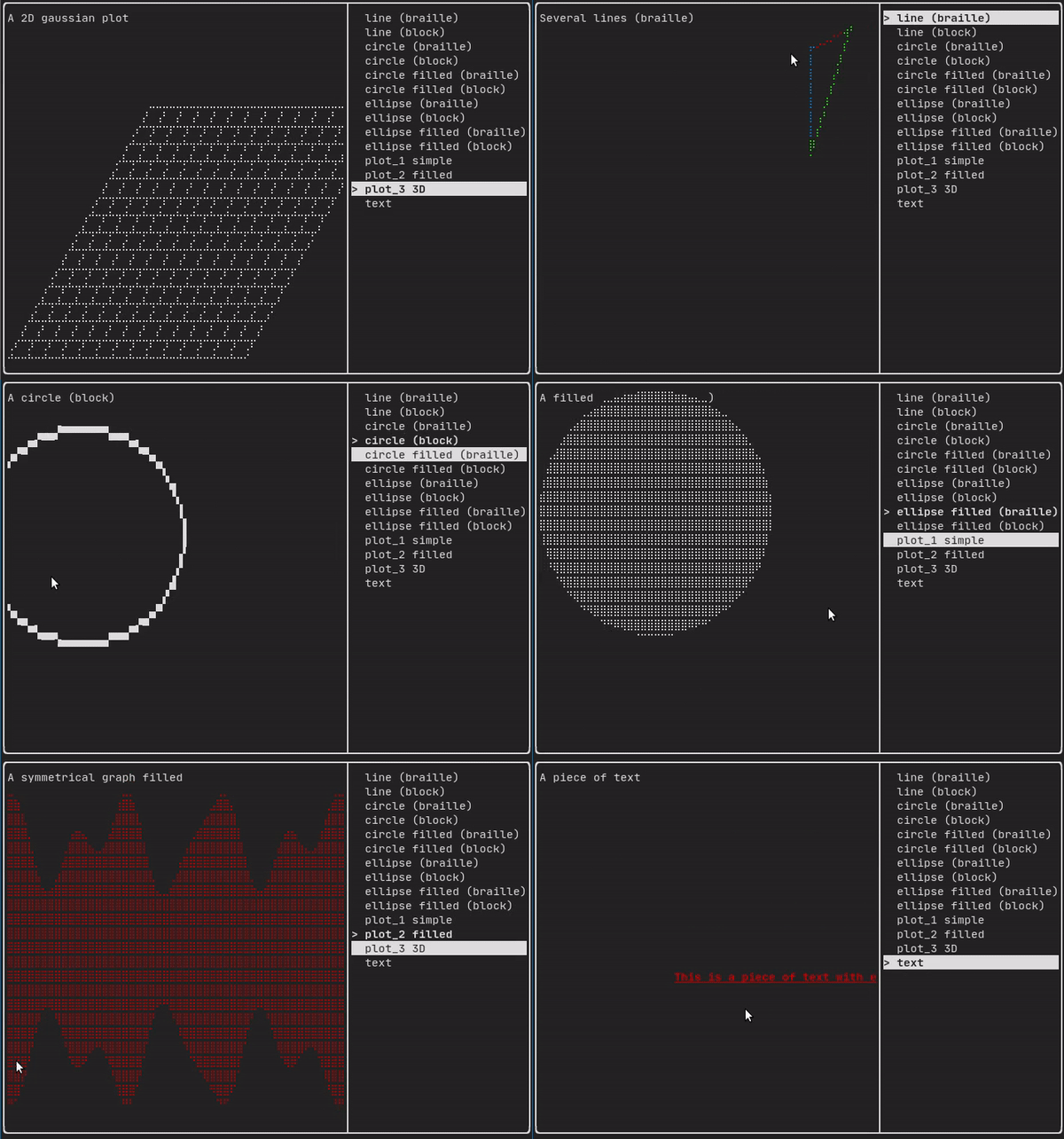
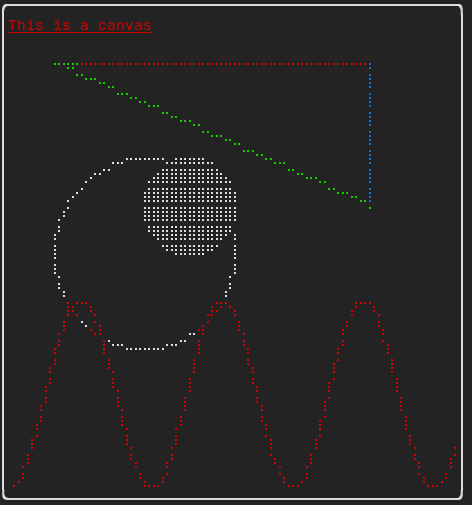
Canvas
See the API <ftxui/dom/canvas.hpp>
auto c = Canvas(100, 100);
c.DrawPointLine(10, 10, 80, 10, Color::Red);
auto element = canvas(c);
Drawing can be performed on a ftxui::Canvas, using braille, block, or simple characters:
Simple example:
Complex example: